


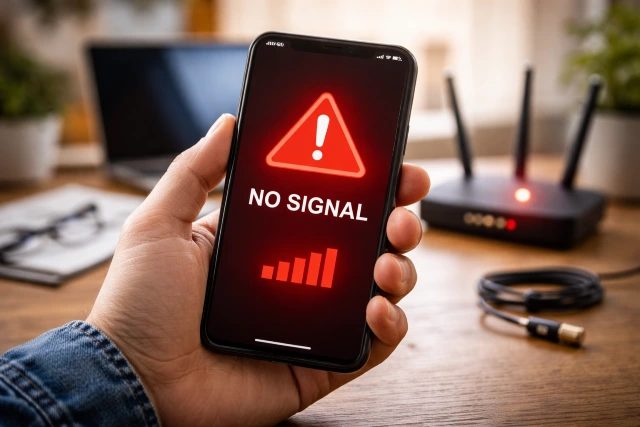
Seeing a Red Phone Signal on your screen can feel weirdly urgent, like your phone is trying to warn you that something is wrong. Sometimes it really is serious (no connection, emergency-only calling, SIM trouble). Other times, it is simply your phone’s theme or status indicator showing weak coverage, roaming, or a temporary network hiccup. The good news is that you can usually fix a Red Phone Signal in a few minutes, as long as you troubleshoot in the right order and do not jump straight to extreme steps.
- What does a Red Phone Signal actually mean
- The fastest way to fix a Red Phone Signal (do these in order)
- Quick cheat sheet: Red Phone Signal causes and best fix
- Android fixes: common settings that actually help
- iPhone fixes: what Apple recommends when you see SOS or No Service
- Why your signal turns red in one place but looks fine elsewhere
- When a signal booster is a legitimate option (and what to know)
- Real-world examples: fix the Red Phone Signal based on the exact scenario
- FAQs about Red Phone Signal
- Conclusion
In this guide, you will learn what the red signal indicator commonly means, the fastest fixes that work on both Android and iPhone, and how to tell whether the problem is your device, your SIM, your settings, or the network around you.
What does a Red Phone Signal actually mean
There is no single universal rule that says “red signal always means X” because different phone brands, Android skins, icon packs, and carrier tools can display signal strength in different colors.
That said, a Red Phone Signal commonly shows up in one of these situations:
- No service or searching: your phone is not connected to your carrier’s cellular network.
- Emergency-only state: your phone cannot connect to your carrier, but may allow emergency calls through other networks in supported regions (iPhone often shows “SOS” or “SOS only”).
- Very weak reception: your phone is connected, but the signal is so low that calls or data may drop.
- Roaming or restricted connection: you are connected differently than normal, depending on your plan and location.
- Account, SIM, or device issue: the phone cannot register on the network due to SIM faults, carrier provisioning, or hardware problems.
A quick reality check: if you can call, text, and use mobile data normally, the red icon may simply be cosmetic (theme or UI). If calls fail, texts hang, or data is dead, treat it as a real connectivity problem and follow the steps below.
The fastest way to fix a Red Phone Signal (do these in order)
These steps are arranged from quickest and safest to more “deep reset” options. Many people waste time because they start with advanced fixes first.
Step 1: Toggle Airplane Mode for 15 seconds
This forces your phone to disconnect and reconnect to nearby towers. It is the fastest refresh for a stuck connection.
- Turn Airplane Mode ON
- Wait 15 seconds
- Turn it OFF
- Give it 30 to 60 seconds to re-register
On iPhone, Apple recommends this kind of basic connectivity check when you see “No Service,” “Searching,” or “SOS.”
On Android (Pixel guidance), Google also recommends standard connectivity troubleshooting steps like toggling radios and checking carrier compatibility and registration.
Step 2: Restart your phone (yes, really)
A reboot clears temporary modem glitches and background conflicts that can break network registration.
If you want the “fastest version”:
- Power off
- Wait 10 seconds
- Power on
Step 3: Check if the issue is just your location
Before you change anything else, do this simple test:
- Walk outside or near a window
- Move 20 to 30 meters from where you are
- See if the signal returns
Indoor signal can drop hard depending on building materials and tower distance. Also, 5G coverage behaves differently by frequency band, and low-band spectrum generally penetrates buildings better than higher bands.
Step 4: Confirm your SIM is seated properly (physical SIM)
If your device uses a physical SIM, power off first, then:
- Remove the SIM tray
- Inspect for dust, scratches, or misalignment
- Reinsert firmly and evenly
- Power on and wait for the network to register
If the SIM is old or damaged, a replacement SIM from your carrier can fix random dropouts and “no service” behavior.
Step 5: Check your network selection and data settings
On Android:
- Settings → Network & Internet (or Connections)
- Make sure Mobile data is ON
- Try switching Preferred network type (for example, 5G/4G to 4G/3G/2G or 4G only)
On iPhone:
- Settings → Cellular → Cellular Data Options
- Ensure data is ON and try toggling voice/data modes if available
If you are in a weak area, forcing the phone to prefer a more stable mode (often LTE/4G) can reduce bouncing between towers and bands.
Step 6: Check for carrier outage or maintenance
If multiple people around you on the same carrier are also having trouble, it may be a network issue. In that case, most phone-side fixes will not stick until the carrier resolves it.
A quick indicator:
- Your phone shows “No Service” or cannot register anywhere, even after restart, but Wi-Fi works fine
Step 7: Update carrier settings and your phone software
On iPhone, Apple explicitly recommends keeping iOS and carrier settings updated when you see “No Service,” “Searching,” or “SOS.”
On Android, system updates can include modem and radio fixes. If your Red Phone Signal started right after an update, it may also take a second update or a settings reset (next step) to stabilize.
Step 8: Reset network settings (this fixes a lot)
If the red signal won’t go away, a network reset is one of the highest-success steps because it clears corrupted network profiles, saved carrier settings, and broken Bluetooth/Wi-Fi configs that can interfere with connectivity.
On Android, a network reset typically resets Wi-Fi, mobile data, and Bluetooth settings.
On iPhone, “Reset Network Settings” is also a standard fix in Apple’s troubleshooting flow.
What to expect:
- You will lose saved Wi-Fi passwords
- Bluetooth pairings may be removed
- Your phone will reconnect fresh
Step 9: Check if your phone is affected by older network shutdowns (VoLTE issue)
If you have an older phone (or an older 4G phone that does not support VoLTE), it might show strange service behavior or fail to place calls in places where 3G service used to “save the day.” The FCC has warned that 3G shutdowns can affect 3G phones and certain older 4G phones that do not support VoLTE (HD Voice).
If your Red Phone Signal mostly shows up as “can’t make calls” rather than “no bars,” this is worth checking with your carrier.
Step 10: If nothing works, suspect SIM provisioning, account status, or hardware
At this stage, your likely causes are:
- SIM or eSIM provisioning issue (carrier side)
- Account or plan restriction
- IMEI or device registration problem
- Antenna or modem hardware fault
A simple test that isolates the problem:
- Put your SIM in another phone
- If the Red Phone Signal follows the SIM, it’s carrier/SIM/account.
- If it stays with the phone, it’s likely device settings or hardware.
Quick cheat sheet: Red Phone Signal causes and best fix
| What you notice | Most likely cause | Fastest fix to try |
|---|---|---|
| Red signal appears suddenly, then returns | Temporary tower or modem glitch | Airplane Mode toggle, restart |
| Red signal only indoors | Weak indoor coverage or higher-band limitation | Move near window, switch to LTE/4G |
| Red signal after software update | Modem profile conflict | Restart, then network settings reset |
| Red signal with “No Service” everywhere | SIM/provisioning or outage | Re-seat SIM, check carrier, update settings |
| Calls fail but data sometimes works | VoLTE or voice provisioning issue | Check VoLTE support, carrier settings, carrier help |
Android fixes: common settings that actually help
Set the preferred network mode to stable coverage
If your phone keeps hopping between network types, it can look like a stuck red signal. In weak areas, LTE/4G can be steadier than 5G depending on band availability and indoor conditions.
Reset APN only if you changed it
If you never touched APN settings, do not randomly change them. But if you installed a configuration profile, used a third-party “internet settings” tool, or manually edited APN, reverting to default can restore mobile data.
Use the built-in connectivity troubleshooting guidance
Google’s Pixel support guidance walks through mobile connectivity issue checks and compatibility notes that can explain why some phones do not work on certain networks the way you expect.
iPhone fixes: what Apple recommends when you see SOS or No Service
Apple’s official guidance for “SOS,” “No Service,” or “Searching” includes:
- Checking coverage area
- Restarting the device
- Updating iOS and carrier settings
- Removing and reinserting the SIM (if applicable)
- Resetting network settings
If your Red Phone Signal is appearing alongside “SOS” or similar status, treat it as a network registration problem, not a cosmetic icon.
Why your signal turns red in one place but looks fine elsewhere
This is usually physics, not your phone “going bad.”
Common reasons:
- Building materials: concrete, metal framing, tinted glass
- Tower distance and line of sight
- Network congestion: too many users on one tower at peak time
- Spectrum band behavior: low-band usually reaches farther and penetrates better than higher bands, while higher bands can be faster but shorter range.
If your Red Phone Signal always appears at the same location (home, office, basement), that pattern is a major clue.
When a signal booster is a legitimate option (and what to know)
If your problem is consistently weak indoor signal, a properly installed signal booster may help. The FCC explains that consumer signal boosters are designed to improve wireless coverage in a limited area like a home or car, and also notes the importance of proper design and installation to avoid interference.
Key takeaway: not every “booster” is safe or effective, and poorly installed or malfunctioning boosters can interfere with networks.
Real-world examples: fix the Red Phone Signal based on the exact scenario
Scenario 1: Red signal after traveling or roaming
What usually happened: your phone latched onto a roaming profile or a weird network selection.
Fast fix sequence:
- Airplane Mode toggle
- Restart
- Set Network Selection to Automatic
- If still stuck, reset network settings
Scenario 2: Red signal after you changed SIM or moved to eSIM
What usually happened: provisioning did not complete properly.
Fast fix sequence:
- Restart
- Check for carrier settings update (iPhone)
- Remove and re-add eSIM (carrier may need to reissue)
- If physical SIM, re-seat it and test in another phone
Scenario 3: Red signal after an Android system update
What usually happened: modem configuration got messy.
Fast fix sequence:
- Restart
- Reset network settings
- Install any pending minor updates (patches often follow)
FAQs about Red Phone Signal
Why is my signal red but I still have bars
Some phones show bars in red to indicate weak connection quality even if a signal exists. You might have a marginal connection that works for texting but struggles with calls or data. Try switching to LTE/4G, moving locations, or toggling Airplane Mode.
Red Phone Signal on iPhone means what exactly
If it appears alongside “SOS,” “No Service,” or “Searching,” it generally means your iPhone is not connected to your carrier’s cellular network. Apple’s guidance focuses on coverage checks, updates, SIM steps, and network reset.
Can a Red Phone Signal be caused by my SIM card
Yes. A damaged, old, or improperly seated SIM can prevent network registration. Re-seating the SIM is a quick test. If the issue persists, testing the SIM in another phone can isolate whether it is SIM/carrier or device related.
Will resetting network settings delete my photos or apps
Network reset affects network-related configurations like Wi-Fi, mobile data, and Bluetooth settings, not your photos. On Android, it typically resets Wi-Fi, mobile data, and Bluetooth settings.
My phone worked before, why does it suddenly struggle with calls
If you have an older device, it may be impacted by network changes, especially where older 3G service used to support voice calling. The FCC notes that 3G shutdowns can affect 3G phones and certain older 4G phones that do not support VoLTE.
Conclusion
A Red Phone Signal is your phone’s way of saying, “my cellular connection is weak, restricted, or not registering correctly.” The fastest fixes are usually simple: toggle Airplane Mode, restart, re-seat the SIM, and confirm you are not stuck on a problematic network mode. If it keeps happening, a network settings reset is often the turning point, and if you are using an older device, it is worth checking VoLTE compatibility because network upgrades can change what “works” overnight.
If you want to understand how your phone talks to a cellular network in the first place, it makes the “red signal” moments feel a lot less mysterious and a lot more fixable.